
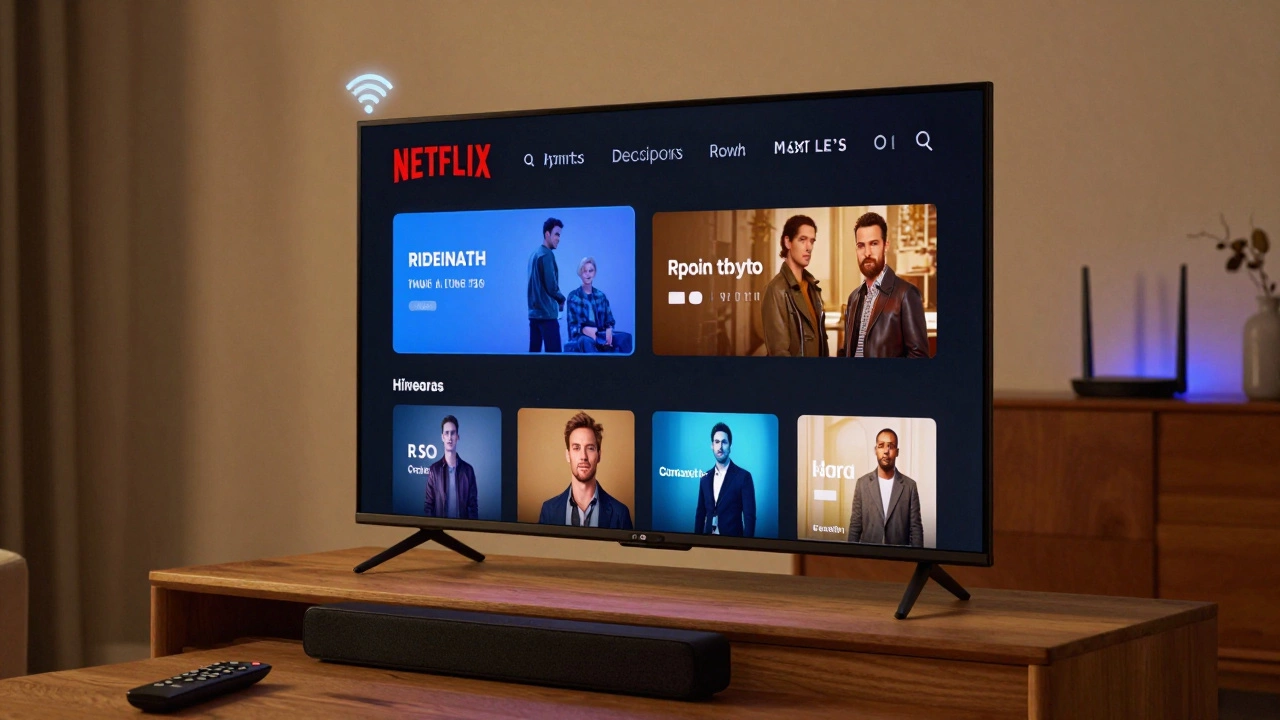
Every time you unbox a new smart TV, you’re greeted with a long setup process. One of the first questions you’ll see is: Connect to Wi-Fi or Use Ethernet. And that’s where confusion kicks in. Do you really need to plug your smart TV into your router? Or can it just work on its own?
The short answer: yes, your smart TV needs to be connected to your router - but not always with a cable. You have two options: Wi-Fi or Ethernet. Both connect your TV to your home network, which is powered by your router. Without this connection, your smart TV loses most of its smart features.
What Happens If You Don’t Connect Your Smart TV to the Router?
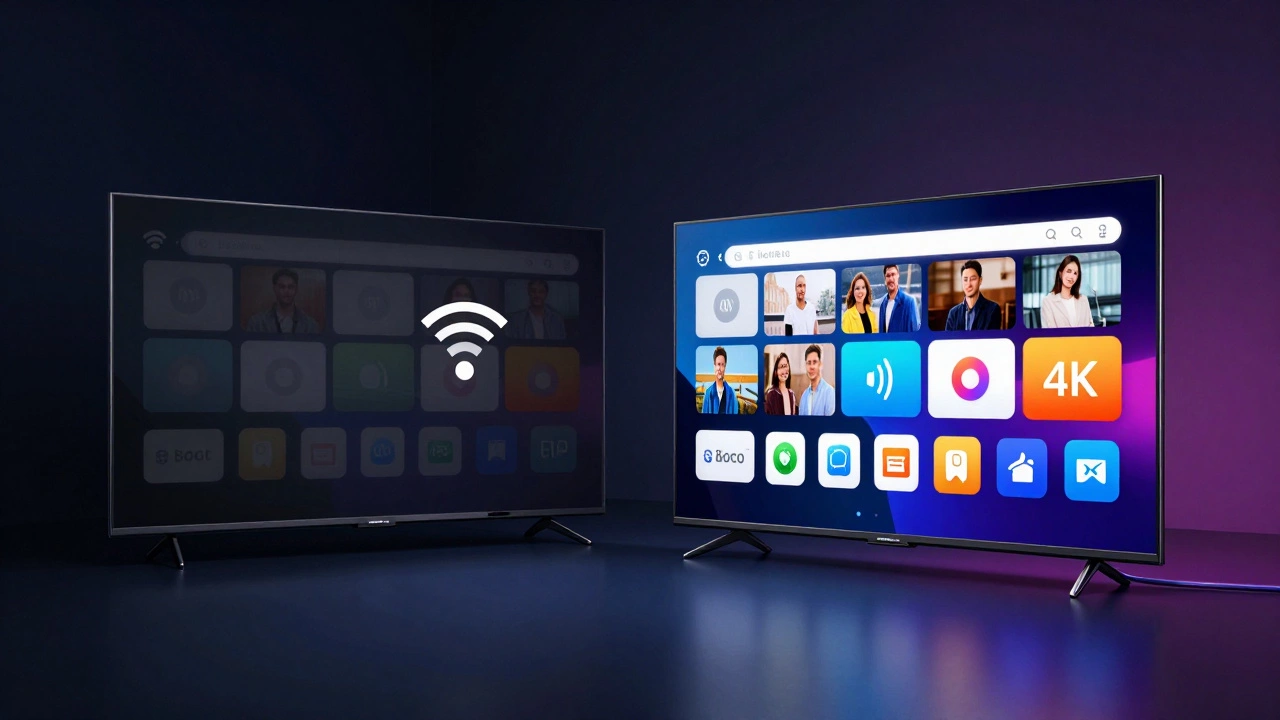
Let’s say you plug in your TV, turn it on, and skip the network setup. What do you get? A screen that plays cable or antenna channels just fine. But everything else? Gone.
No Netflix. No YouTube. No Disney+. No app updates. No voice assistants like Alexa or Google Assistant working through the TV. Even the weather widget or news feed on your home screen won’t load. Your TV becomes a basic display - like an old CRT, but with a higher price tag.
Why? Because all those "smart" features rely on the internet. The apps you download, the shows you stream, the firmware updates that fix bugs - they all come from servers outside your home. Your router is the bridge between your TV and those servers.
Wi-Fi vs. Ethernet: Which One Should You Use?
You don’t need to plug a cable into your TV to get internet. Wi-Fi works just fine for most people. But here’s the catch: not all Wi-Fi connections are equal.
If your TV is in the same room as your router, or within 10 feet with no walls in between, Wi-Fi is usually smooth. Streaming 4K content? No buffering. Voice commands respond fast. App updates download quickly. Life’s good.
But if your TV is in the basement, behind a brick wall, or across the house from your router? Wi-Fi might struggle. You’ll see pixelation during movies, lag when switching apps, or even random disconnections. That’s not your TV’s fault - it’s your signal.
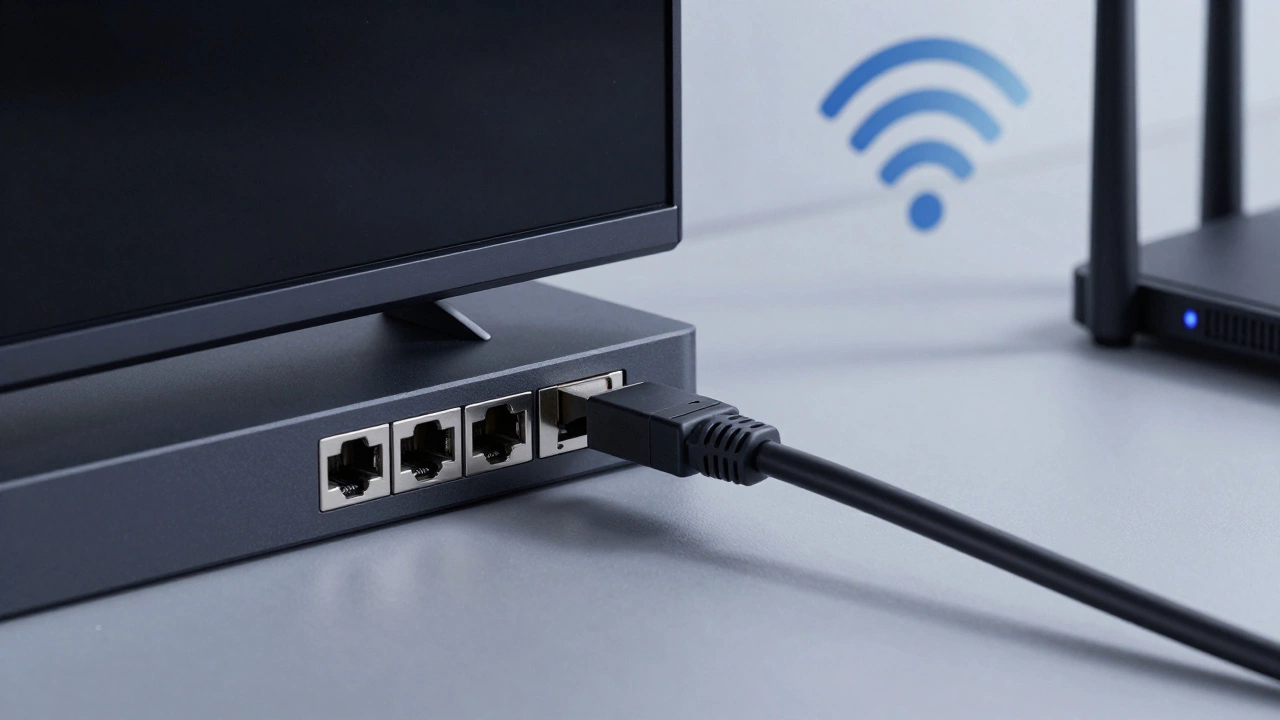
That’s where Ethernet comes in. If your TV has an Ethernet port (most modern ones do), and you can run a cable from your router to the TV, this is the most reliable option. Ethernet gives you:
- Stable connection - no drops, no interference
- Faster speeds - ideal for 4K, HDR, or gaming
- No competition with other devices - Wi-Fi gets crowded with phones, laptops, smart speakers
Some people think Ethernet is for tech nerds only. It’s not. If you watch a lot of streaming content or play games on your TV, Ethernet is the quiet hero you didn’t know you needed.
Do Smart TVs Have Built-In Wi-Fi?
Yes. Every smart TV made since 2015 has built-in Wi-Fi. You don’t need a separate adapter, dongle, or USB stick. The hardware is inside the TV. All you need to do is pick your network and enter the password.
But here’s something most users miss: not all Wi-Fi bands are the same. TVs usually support both 2.4 GHz and 5 GHz networks.
2.4 GHz travels farther through walls but is slower and more crowded. It’s good for basic tasks like checking the weather or updating apps. But for streaming 4K video? You’ll want 5 GHz. It’s faster, cleaner, and less likely to buffer - if your router is close enough.
Pro tip: If your TV keeps disconnecting, check which band it’s using. Go into Network Settings > Advanced Settings > Wi-Fi Band. Switch to 5 GHz if possible. If your router doesn’t broadcast 5 GHz, it’s time to upgrade.
Can You Use a Mobile Hotspot Instead of a Router?
Technically, yes. You can connect your smart TV to your phone’s hotspot. But you shouldn’t.
Mobile hotspots are designed for phones, tablets, and laptops - not for streaming 4K video for hours. They use your cellular data, which has limits. A single 2-hour 4K movie can eat up 7-10 GB. That’s a chunk of your monthly plan.
Plus, hotspots aren’t built for 24/7 use. Your phone overheats. Battery drains. Connection drops when you move away from the TV. And if your phone goes offline, your TV goes dark.
It’s a band-aid solution. Not a real one.
What About Smart TVs Without Internet?
Some older or budget TVs claim to be "smart" but don’t connect to the internet. These are rare now. If you’re buying a new TV, assume it needs internet to work as advertised.
Even if you don’t plan to stream, the TV still needs updates. Manufacturers push fixes for bugs, security holes, and app compatibility. Skip updates, and your TV might stop working with Netflix or Hulu next year.
Think of it like a smartphone. You wouldn’t buy a phone and never connect it to Wi-Fi or cellular. Same logic applies here.
How to Check If Your Smart TV Is Connected
Most smart TVs show a network status icon on the home screen. Look for a Wi-Fi symbol or Ethernet icon. If it’s grayed out or has an X, you’re not connected.
Go into Settings > Network > Network Status. It’ll tell you:
- Connection type (Wi-Fi or Ethernet)
- IP address (if it shows one, you’re connected)
- Signal strength (for Wi-Fi)
- Speed test results (some TVs run this automatically)
If it says "Disconnected," restart your TV. Then restart your router. Unplug it for 30 seconds. Plug it back in. Wait two minutes. Try again.
If that doesn’t work, check your router’s admin page. Look for a list of connected devices. Your TV’s name should appear there. If it’s not, the TV’s Wi-Fi is off, the password is wrong, or the router is blocking it.
Do You Need a Special Router?
No. Any modern router from the last five years will work fine with a smart TV. You don’t need a "smart home router" or a "gaming router."
Just make sure:
- It supports 5 GHz Wi-Fi (most do)
- It’s not too old (pre-2018 routers may lack speed or security updates)
- It’s placed in a central location, not tucked behind a cabinet
If you have a large home, consider a mesh Wi-Fi system. One router isn’t enough if your TV is in a bedroom on the third floor. Mesh systems use multiple units to spread coverage evenly. Brands like Eero, TP-Link Deco, or Google Nest Wi-Fi work well with smart TVs.
Final Answer: Yes, You Must Connect Your Smart TV
Whether you use Wi-Fi or Ethernet, your smart TV needs to connect to your router. Without it, you’re just paying for a fancy screen. The whole point of a smart TV is to access apps, updates, and services - and none of that works without internet.
Don’t overcomplicate it. Pick Wi-Fi if your TV is close to the router. Use Ethernet if you want rock-solid performance. Either way, make sure it’s connected. Your streaming habits - and your future self - will thank you.