

Laptop Replacement Decision Calculator
Enter your current laptop's details below to get a personalized recommendation on whether to keep, repair, or buy new.
Recommendation:
--Analysis will appear here.
You open your laptop, wait thirty seconds for the login screen, and then watch the cursor spin while you try to load a simple spreadsheet. It’s frustrating, right? But is that frustration enough reason to spend $1,500 on a new machine? Not necessarily. The decision to replace your computer isn’t just about age; it’s about the balance between your productivity loss and the cost of a new device. In 2026, hardware cycles have shifted, with AI-integrated chips becoming standard, making older machines feel slower even if they technically still work.
Here is the hard truth: most laptops don’t die suddenly. They degrade. Batteries hold less charge, fans get louder, and software updates start demanding resources your processor can’t easily spare. Knowing exactly when to pull the trigger saves you money and prevents you from clinging to a machine that costs you more in lost time than a new one would.
The Three-Year Rule and Why It’s Changing
For years, the general advice was to replace a laptop every three to five years. That rule of thumb is crumbling. Today, the definition of "obsolete" depends heavily on what you actually do. If you’re a writer using local text editors, a six-year-old MacBook Air might still be perfectly fine. But if you’re editing 4K video or running local LLMs (Large Language Models), a two-year-old Intel-based machine might already feel like a relic compared to the new Apple M-series or AMD Ryzen AI processors dominating the market in 2026.
The shift is driven by software bloat and new features. Windows 11 and macOS Sequoia are optimized for specific instruction sets found in newer CPUs. When your hardware lacks these native accelerations, tasks take longer. You aren't just dealing with a slow computer; you're dealing with a computer that is actively fighting against modern efficiency standards. If your daily workflow has changed-say, you started doing video calls with heavy background blur or multitasking with twenty Chrome tabs-the hardware requirements have jumped exponentially.
Battery Health: The Silent Killer of Mobility
If you carry your laptop around campus, coffee shops, or client meetings, battery health is often the first sign it’s time for an upgrade. Lithium-ion batteries degrade chemically over time. By year four, many laptops retain only 70-80% of their original capacity. This sounds manageable until you realize your "all-day" battery now lasts four hours under load.
You can check this on most systems. On Windows, run `powercfg /batteryreport` in the command prompt. On macOS, go to System Settings > Battery > Battery Health. If your maximum capacity is below 80%, you are tethered to a wall outlet more often than not. While you can replace the battery, consider the labor cost and the fact that you’re putting a new heart into an aging body. If the rest of the system is sluggish, a new battery won’t fix the processing bottlenecks. At that point, the investment makes more sense in a new chassis with better power efficiency.
Performance Bottlenecks: RAM and Storage
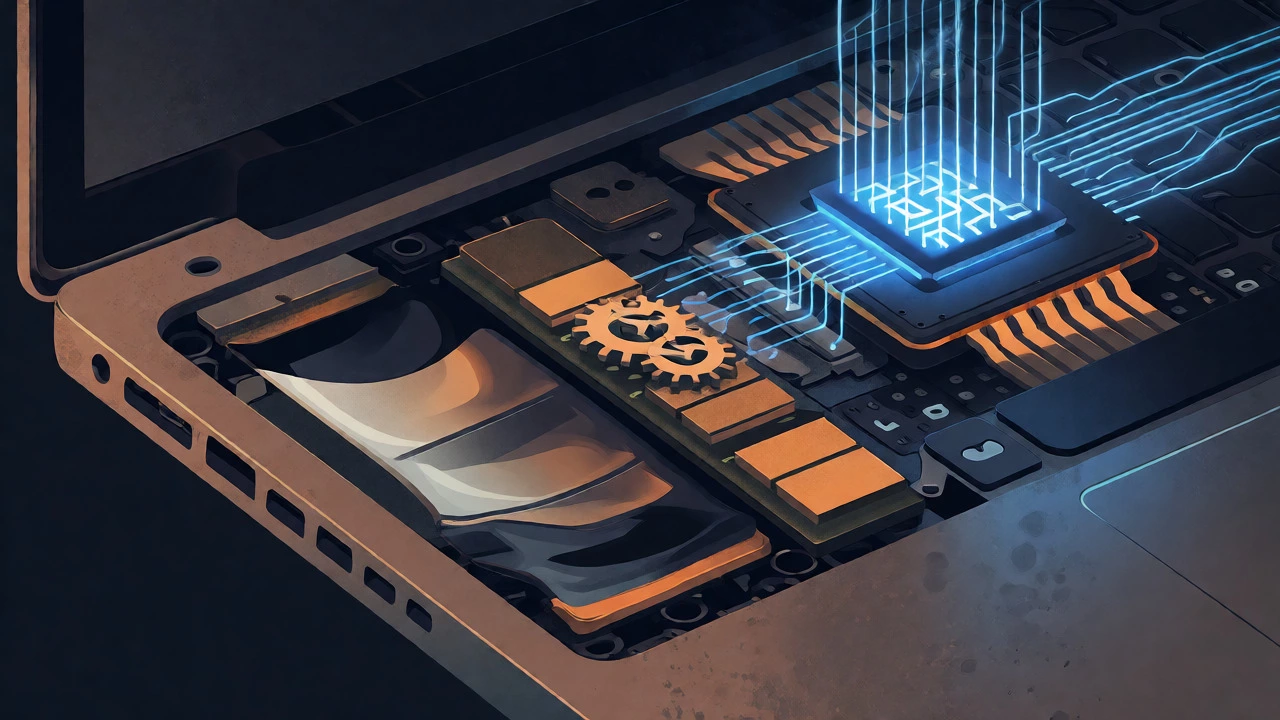
Nothing kills productivity faster than running out of memory. In 2026, 8GB of RAM is barely sufficient for basic web browsing. Modern browsers, especially with AI assistants integrated, eat up memory aggressively. If you constantly see your disk activity spike because the system is swapping data to the hard drive, you’ve hit a bottleneck.
Check your Task Manager (Windows) or Activity Monitor (Mac). If your memory usage is consistently above 90% during normal tasks, your laptop is struggling. Upgrading RAM is possible on some older models, but many thin-and-light laptops sold since 2020 have soldered memory that cannot be upgraded. If your machine has 8GB soldered and you need 16GB for smooth operation, you physically cannot improve it without buying a new board-and at that price, you might as well buy a new laptop.
Storage speed matters too. If you’re still using a mechanical hard drive (HDD) or an older SATA SSD, switching to a NVMe Gen 4 or Gen 5 drive can make an old machine feel snappy. However, if your motherboard doesn’t support the latest NVMe speeds, the gain is marginal. Calculate the cost: a 1TB NVMe drive costs around $80-$100. If the total repair cost exceeds 30% of a new laptop’s price, walk away.
| Scenario | Recommended Action | Why? |
|---|---|---|
| Battery degrades to <80% capacity | Replace Battery if <3 years old; Buy New if >4 years old | Newer laptops have better power management; replacing battery in old chassis yields diminishing returns. |
| RAM is 8GB or less and soldered | Buy New | Cannot upgrade RAM internally; 8GB is insufficient for 2026 multitasking standards. |
| CPU is 5+ generations behind current flagship | Buy New | Lack of AI acceleration and efficiency cores leads to poor battery life and thermal throttling. |
| Screen has dead pixels or flickering | Repair if under warranty; Otherwise Evaluate Cost | Screen replacements are expensive ($200-$400); often approaches half the value of an older used laptop. |
The Cost of Obsolescence: Security and Software Support
We often ignore security until we get hacked. Manufacturers stop pushing major OS updates after a certain period. For example, Microsoft ended mainstream support for Windows 10, shifting focus entirely to Windows 11. If your hardware doesn’t officially support the current OS version, you’re missing out on critical security patches and feature updates.
In 2026, cybersecurity threats are more sophisticated, often targeting vulnerabilities in unpatched drivers and firmware. Running an unsupported OS means you’re exposed. Furthermore, newer software versions drop support for older APIs. If you find that you can’t install the latest version of Adobe Creative Cloud or Microsoft Office because your OS is "too old," you’re effectively locked out of professional tools. This software ceiling is a definitive signal to upgrade. You don’t want to be stuck on legacy apps while your colleagues collaborate on cloud-native platforms that require newer browser engines.
Ergonomics and Display Quality
This is the factor people forget. Your eyes strain more when looking at low-resolution screens with poor color accuracy. If you stare at a 1080p panel all day versus a modern OLED or high-DPI IPS display, the difference in fatigue is real. Newer laptops in 2026 offer higher refresh rates (120Hz+) and better brightness levels, which significantly impact readability in bright environments.
Also, consider the keyboard and trackpad. Mechanical wear on keys can lead to inconsistent typing, causing errors and slowing down your input speed. Trackpads on older models lack the haptic feedback and precision glass surfaces found on newer devices. If you find yourself squinting or rubbing your wrists after short work sessions, your hardware is hurting your physical well-being. No amount of software optimization fixes bad ergonomics.
Financial Reality Check: Resale Value and Trade-Ins
Laptops depreciate rapidly. The sweet spot for selling is usually before the next major model release cycle. If you wait until your laptop is completely unusable, its resale value drops to near zero. In Vancouver’s tech market, there is a steady demand for refurbished business-class laptops (like ThinkPads or Dell Latitudes) that are 3-4 years old.
Check trade-in values on manufacturer websites or platforms like Swappa and eBay. If your current laptop fetches $300-$400, use that toward a new purchase. Waiting another year might drop that value to $100. Mathematically, upgrading earlier often costs less in net expenditure than holding onto a depreciating asset until it breaks. Plus, you avoid the emergency purchase scenario where you pay full retail price because you desperately need a working computer tomorrow.
Signs You Should Definitely Upgrade Now
- Thermal Throttling: Your fan runs at max speed constantly, and the laptop gets hot enough to cook an egg on. This indicates dust buildup or dried-out thermal paste, but often signals the CPU is working too hard for its design.
- Peripheral Failures: USB ports stop working, Wi-Fi cards disconnect randomly, or the charging port becomes loose. These are signs of internal connector wear that are costly to repair.
- Workflow Changes: You switched from basic office work to video editing, coding, or gaming. Your old specs simply don’t match your new demands.
- Weight and Portability: You bought a 15-inch powerhouse but realized you hate carrying it. Lighter, thinner options with similar power are available now.
Conclusion: Trust Your Gut, But Verify with Data
There is no magic date. Some laptops last eight years; others fail in eighteen months. The key is monitoring performance metrics against your personal productivity goals. If fixing the problem costs more than 50% of a new laptop, buy new. If your battery lasts less than a morning meeting, buy new. If you’re spending more time waiting for things to load than actually working, buy new.
Don’t let sentimentality keep you tied to a machine that slows you down. Technology moves fast, and staying competitive often means having tools that keep up with your ambition. Check your specs, assess your needs, and make the call based on logic, not just how long the box has been sitting on your desk.
How long should a good quality laptop last?
A high-quality consumer laptop typically remains viable for 4-5 years. Business-class laptops (like Lenovo ThinkPad T-series or Dell Latitude) can last 6-7 years with proper maintenance. Gaming laptops often become obsolete sooner, around 3-4 years, due to rapid advancements in GPU technology.
Is it worth replacing the battery instead of buying a new laptop?
Yes, if the laptop is less than 3 years old and otherwise performs well. Battery replacement is relatively cheap ($50-$100). However, if the laptop is over 4 years old, suffers from slow performance, or has non-upgradable RAM, investing in a new battery is often throwing good money after bad.
What is the minimum RAM needed for a laptop in 2026?
16GB is the new standard baseline for comfortable multitasking. 8GB is only acceptable for very light usage like web browsing and word processing. For creative professionals, developers, or AI enthusiasts, 32GB or more is recommended to handle large datasets and virtual machines efficiently.
Does SSD speed really matter for everyday use?
Absolutely. Moving from an HDD or older SATA SSD to a modern NVMe SSD drastically reduces boot times, application launch speeds, and file transfer times. Even if your CPU is older, a fast SSD can make the system feel significantly more responsive, extending its useful life by several years.
Should I upgrade my laptop if it doesn't support the latest OS?
If your laptop cannot run the latest official operating system (e.g., Windows 11 or macOS Sonoma/Sequoia), you are at risk of security vulnerabilities and software incompatibility. Most users should upgrade to ensure continued support for applications and security patches.