
College Laptop Storage Estimator
Answer these questions to find out exactly how much storage (GB) and memory (RAM) you need for your next laptop purchase.
Your Recommended Configuration
Recommended Storage:
-- GB SSDRecommended RAM:
-- GB RAMWhy this choice?
Quick Tips for Your Profile:
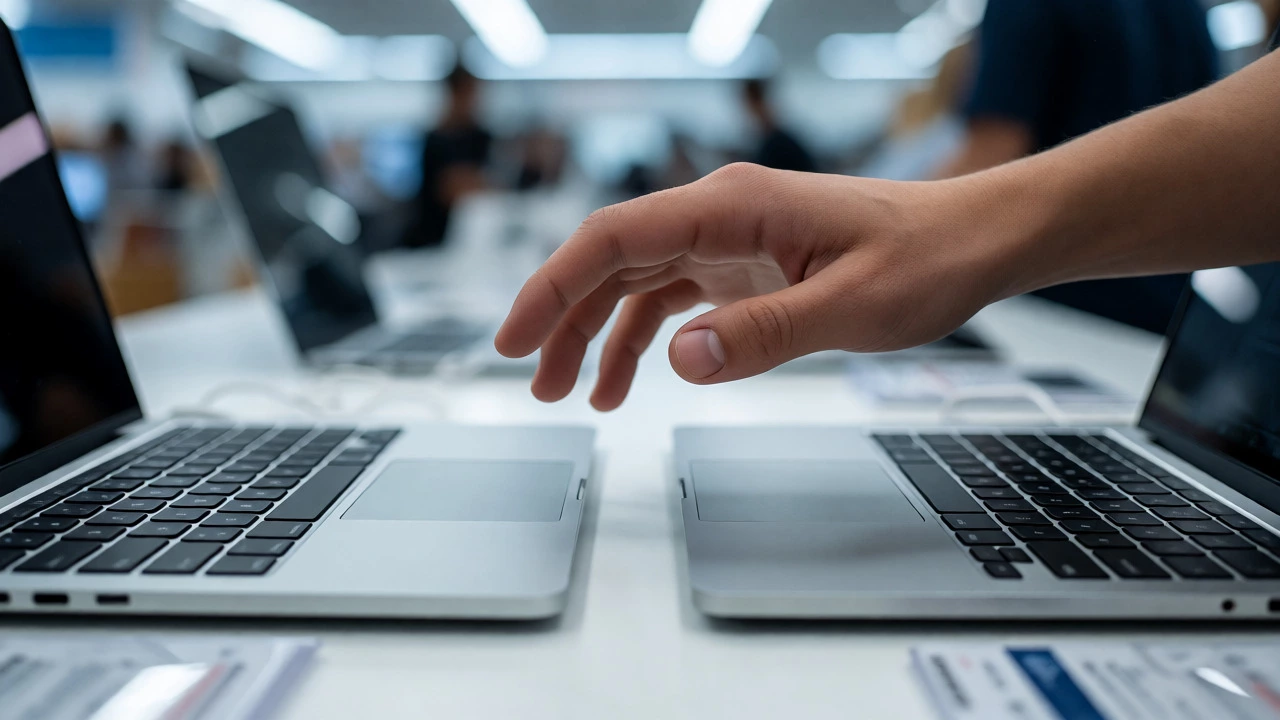
You’re standing in the electronics aisle, staring at two identical-looking laptops. One has 256GB of storage and costs $100 less. The other has 512GB and promises "peace of mind." Which one do you actually need? If you guess based on what your friend bought in 2018, you might already be wrong. Storage needs have shifted dramatically because file sizes are getting bigger, but cloud services are getting cheaper.
Here is the hard truth: buying too little storage will make you delete photos or buy an external drive within six months. Buying too much wastes money that could have gone toward a better screen or more RAM. This guide breaks down exactly how much space you need based on your major, your habits, and the reality of modern computing in 2026.
The Short Answer: What to Buy Right Now
If you want the quick fix without reading the technical details, here is the baseline for most students in 2026:
- Minimum viable product: 256GB SSD. Only choose this if you use Chromebooks, rely heavily on Google Drive/OneDrive, and never store video files locally.
- The sweet spot: 512GB SSD. This fits 90% of students. It handles Windows/macOS updates, office apps, a few games, and your personal files without panic.
- Power users: 1TB SSD. Necessary for engineering, design, video editing, or anyone who refuses to manage their files.
Notice I said SSD (Solid State Drive) every time. Hard Disk Drives (HDDs) are effectively dead for primary boot drives in laptops under $1,000. An HDD is slow, fragile, and makes your laptop feel sluggish even with good specs. Never buy a laptop with only an HDD as your main drive unless it’s a desktop replacement with dual drives.
Why Your Major Dictates Your Storage Needs
A history major and a computer science major have completely different digital footprints. Let’s look at why.
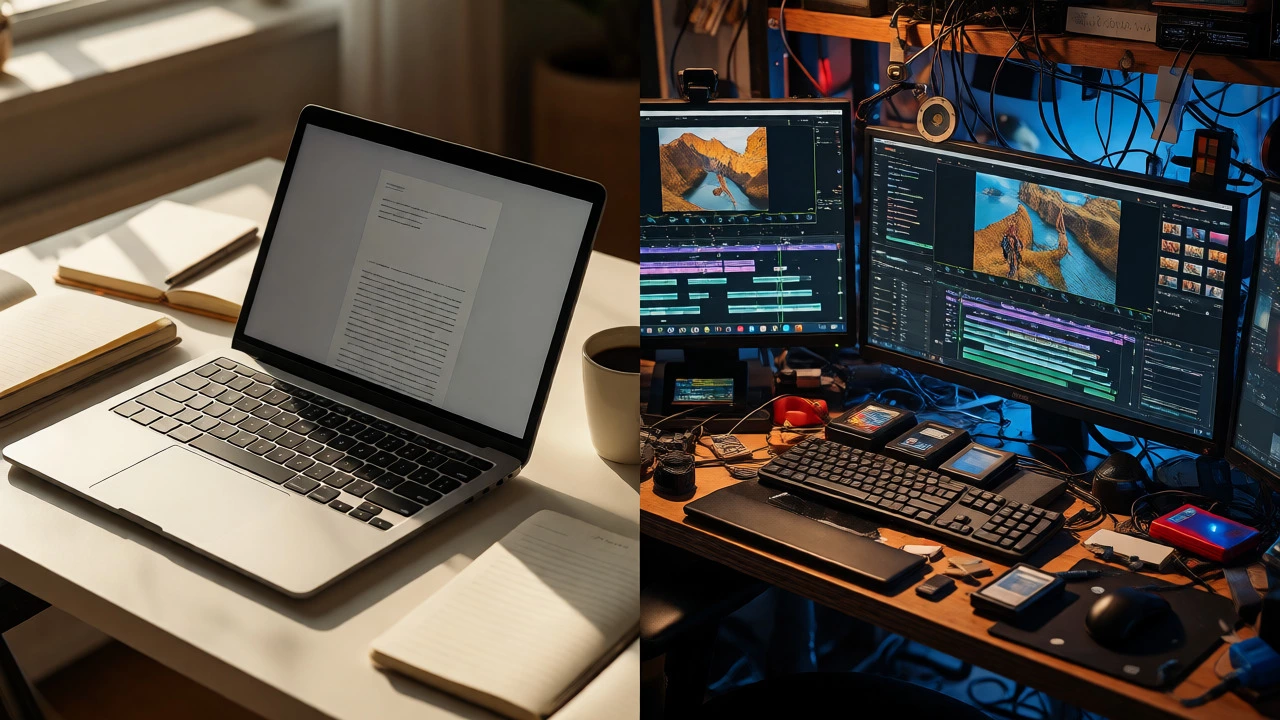
Humanities and Social Sciences majors typically require light software like Microsoft Office, web browsers, and PDF readers. Their files are small-text documents and presentations rarely exceed a few megabytes. For these students, 256GB is often sufficient if they embrace cloud storage. However, if you take a film studies elective or download high-res images for research, bump up to 512GB.
STEM Majors (Science, Technology, Engineering, Math) often run heavy simulation software, CAD tools like AutoCAD or SolidWorks, and coding environments. These applications can take up 10-20GB each just to install. Plus, datasets for machine learning or engineering projects can be massive. A 256GB drive fills up fast when you factor in the operating system (which takes ~30-40GB) and these professional tools. Aim for 512GB minimum.
Creative Arts and Media students deal with raw footage, high-resolution PSD files, and audio tracks. A single hour of 4K video can consume 100GB+ depending on compression. If you edit video or produce music, 512GB is the bare minimum, and 1TB is highly recommended. External drives are almost mandatory here, but having local scratch space speeds up rendering significantly.
The Hidden Space Eaters: OS and Updates
Many students forget that the storage advertised on the box isn’t all usable. Here’s where your GB go before you even save a file:
- The Operating System: Windows 11 requires about 64GB of disk space for installation, though it uses less dynamically. macOS Ventura/Sonoma reserves similar amounts. Factor in 30-40GB for the OS itself.
- System Restore Points & Cache: Your computer creates backups and temporary files to help it recover from crashes. This can silently eat 10-20GB over time.
- App Bloat: Modern apps are not optimized for size. Adobe Creative Cloud alone can demand 20GB+ with plugins. Even Microsoft Teams stores chat history and files locally until synced.
If you buy a 256GB laptop, you realistically have about 180-200GB of free space after setup. That sounds like a lot until you realize one AAA game is 100GB. Suddenly, you’re choosing between gaming and storing your thesis drafts.
Cloud Storage vs. Local Storage: The Trade-Off
"Can't I just use iCloud or Dropbox?" Yes, but there are catch-22s.
| Feature | Local SSD (Internal) | Cloud Storage (iCloud/Dropbox/OneDrive) |
|---|---|---|
| Speed | Extremely Fast (Read/Write speeds >500MB/s) | Dependent on Wi-Fi speed; laggy for large files |
| Offline Access | Always available, even in tunnels or flights | Only if previously downloaded; risky on spotty campus Wi-Fi |
| Cost | Higher upfront cost per GB ($100-$150 for +256GB) | Subscription model (~$10/month for 2TB); recurring expense |
| Reliability | Hardware failure risk (but backups mitigate this) | Service outages rare but possible; account issues can lock data |
For college, reliability matters more than convenience. Campus Wi-Fi in lecture halls can be terrible. If your professor asks you to open a large PDF from the cloud and it spins for two minutes, you look unprepared. Keep your active semester files on the local SSD. Use the cloud for archiving old semesters or sharing big projects.
Ram Matters More Than You Think
While you asked about GB of storage, don't ignore GB of RAM (Random Access Memory). They work together. If you have low RAM, your computer uses part of your storage as "virtual memory," which slows everything down.
- 8GB RAM: Okay for basic browsing and Word docs. Struggles with 10+ browser tabs plus Spotify.
- 16GB RAM: The standard for 2026. Handles multitasking, Zoom calls, and heavier apps smoothly.
- 32GB RAM: Overkill for most undergrads unless you do virtualization (running Linux inside Windows) or heavy video editing.
A laptop with 512GB storage but only 8GB RAM will feel slower than a laptop with 256GB storage and 16GB RAM for daily tasks. Prioritize RAM first, then storage.
Upgradeability: Can You Add More Later?
This is the secret weapon many buyers miss. Some laptops allow you to add a second SSD or replace the existing one. Others are soldered shut.
Macs: Apple Silicon Macs (M1, M2, M3, M4 chips) generally have soldered storage. You cannot upgrade them later. Buy the size you need now. If you buy a MacBook Air with 256GB, you are stuck with 256GB forever.
Windows Laptops: Many mid-range and business laptops (like Dell XPS, Lenovo ThinkPad, HP Envy) have an empty slot for a second M.2 NVMe SSD. This means you can buy a 256GB model now and add a cheap 1TB drive next year for $60. Check reviews specifically for "upgradeability" before buying.

Practical Scenarios: Who Are You?
Let’s match profiles to recommendations so you don’t overspend or underspec.
Scenario A: The Minimalist Business Major
You use Excel, PowerPoint, and Outlook. You stream Netflix via browser. You back up photos to iCloud.
Recommendation: 256GB SSD, 16GB RAM. Save the money for a longer warranty or a better backpack.
Scenario B: The CS Student / Gamer
You code in Visual Studio Code, run Docker containers, and play Steam games on weekends.
Recommendation: 512GB SSD minimum, 16GB RAM. Games fill space quickly. If you play more than three titles, go 1TB.
Scenario C: The Graphic Design / Video Editor
You use Premiere Pro, Photoshop, and Illustrator. You shoot 4K video.
Recommendation: 1TB SSD internal, 32GB RAM. Get an external 2TB SSD for project archives. Speed is critical for rendering.
Common Pitfalls to Avoid
Don’t fall for these traps when shopping:
- Buying "Hybrid" Drives: Some cheap laptops advertise "1TB SSHD." This is a slow mechanical drive with a tiny cache. It feels sluggish compared to pure SSDs. Avoid unless budget is extremely tight.
- Ignoring File Systems: If you switch between Mac and Windows, format external drives as exFAT. NTFS doesn't write on Mac; APFS/HFS+ doesn't write on Windows.
- Assuming USB-C is Enough: While USB-C ports are fast, relying solely on external drives for your OS or main apps causes friction. Keep the core experience internal.
Final Verdict
For the average college student in 2026, 512GB of SSD storage combined with 16GB of RAM is the safest bet. It balances cost, performance, and future-proofing. It allows you to keep your current semester's files locally while archiving older ones to the cloud. If you are on a strict budget, 256GB works, but discipline is required. If you create media, 1TB is non-negotiable.
Remember, storage is cheap relative to the lifespan of the laptop. Spending an extra $100 now to avoid deleting your senior project files in two years is worth every penny.
Is 256GB enough for a college laptop?
Yes, but only if you rely heavily on cloud storage (Google Drive, OneDrive, iCloud) and do not store large media files like videos or games locally. For most students, 256GB becomes cramped within a year due to OS updates and app bloat.
Should I prioritize RAM or Storage for college?
Prioritize RAM first. 16GB of RAM ensures smooth multitasking and faster performance, which directly impacts your daily workflow. Storage can often be expanded externally or via cloud, but RAM is usually fixed at purchase.
Can I upgrade my laptop's storage later?
It depends on the model. Most Windows laptops allow you to add or replace an M.2 SSD easily. However, most modern MacBooks (Apple Silicon) and thin ultrabooks have soldered storage that cannot be upgraded. Always check the specific model's service manual.
Do I need an external hard drive for college?
Not strictly necessary if you have 512GB+ of internal storage and use cloud backup. However, an external drive is excellent for archiving old semesters' projects or backing up important files offline, providing a safety net against theft or hardware failure.
How much storage does Windows 11 take up?
A fresh installation of Windows 11 typically occupies between 20GB and 30GB. However, with updates, drivers, and system restore points, this footprint grows to approximately 40GB-50GB over time. Always reserve this buffer when calculating usable space.